> ## Documentation Index
> Fetch the complete documentation index at: https://allhandsai-vertex-agent-server-docs.mintlify.site/llms.txt
> Use this file to discover all available pages before exploring further.
# First Time Setup
> Configure Agent Canvas after installation — choose your agent, connect a backend, add an LLM, and launch your first automation.
When you open Agent Canvas for the first time, a four-step setup wizard walks you through the core configuration. Each step can be skipped and revisited later from `Settings`.
## Step 1: Choose Your Agent
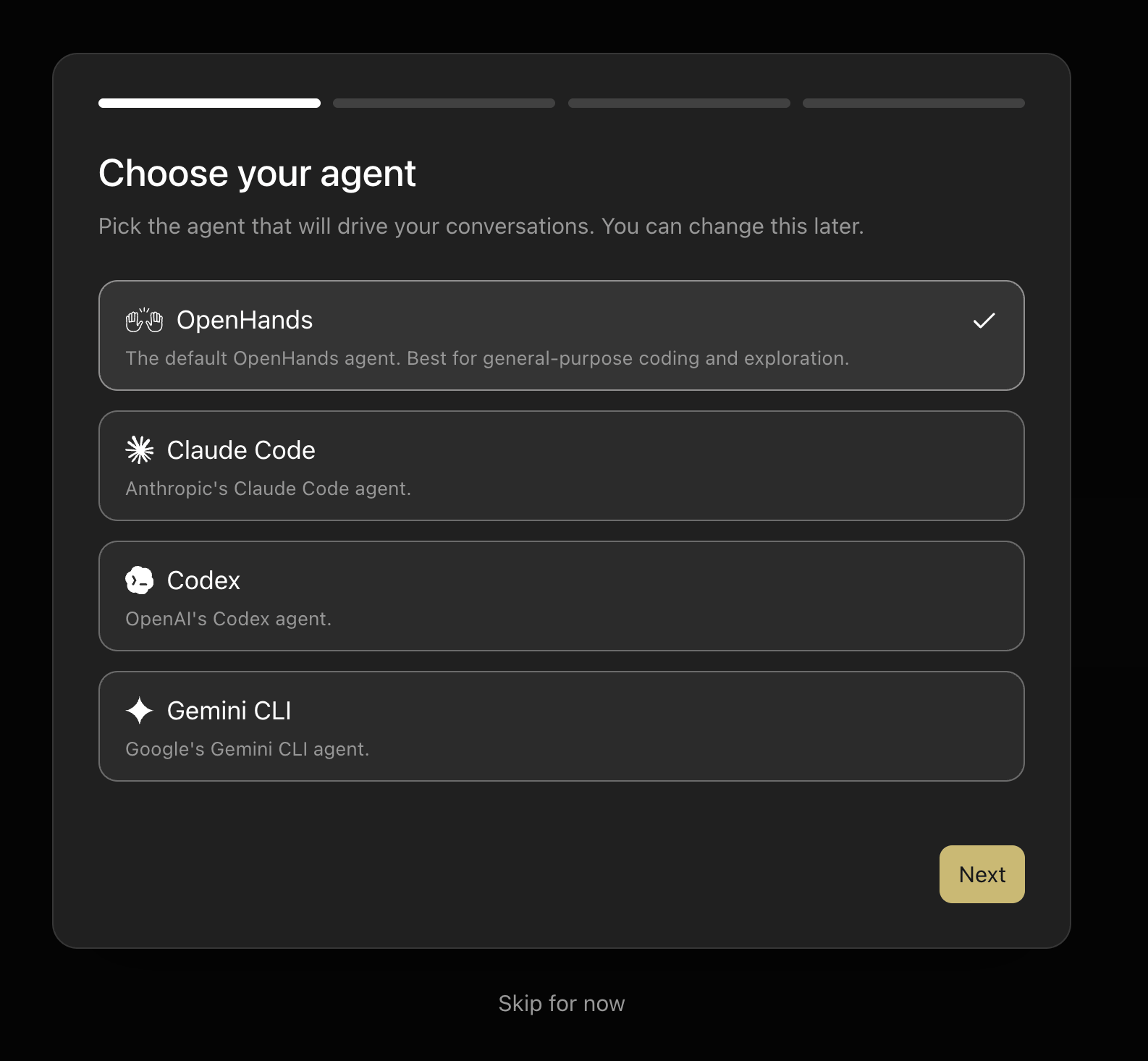 Agent Canvas uses the **Agent-Client Protocol (ACP)** to communicate with agents, which means you're not locked into a single provider.
* **OpenHands** (selected by default) — the general-purpose OpenHands agent, best for coding and exploration.
* **Claude Code** — Anthropic's Claude Code agent.
* **Codex** — OpenAI's Codex agent.
* **Gemini CLI** — Google's Gemini CLI agent.
Choosing a third-party agent lets you interact with it through the Agent Canvas interface and bring your existing subscriptions from those providers.
You can change your agent at any time from `Settings`.
## Step 2: Check Your Backend
Agent Canvas uses the **Agent-Client Protocol (ACP)** to communicate with agents, which means you're not locked into a single provider.
* **OpenHands** (selected by default) — the general-purpose OpenHands agent, best for coding and exploration.
* **Claude Code** — Anthropic's Claude Code agent.
* **Codex** — OpenAI's Codex agent.
* **Gemini CLI** — Google's Gemini CLI agent.
Choosing a third-party agent lets you interact with it through the Agent Canvas interface and bring your existing subscriptions from those providers.
You can change your agent at any time from `Settings`.
## Step 2: Check Your Backend
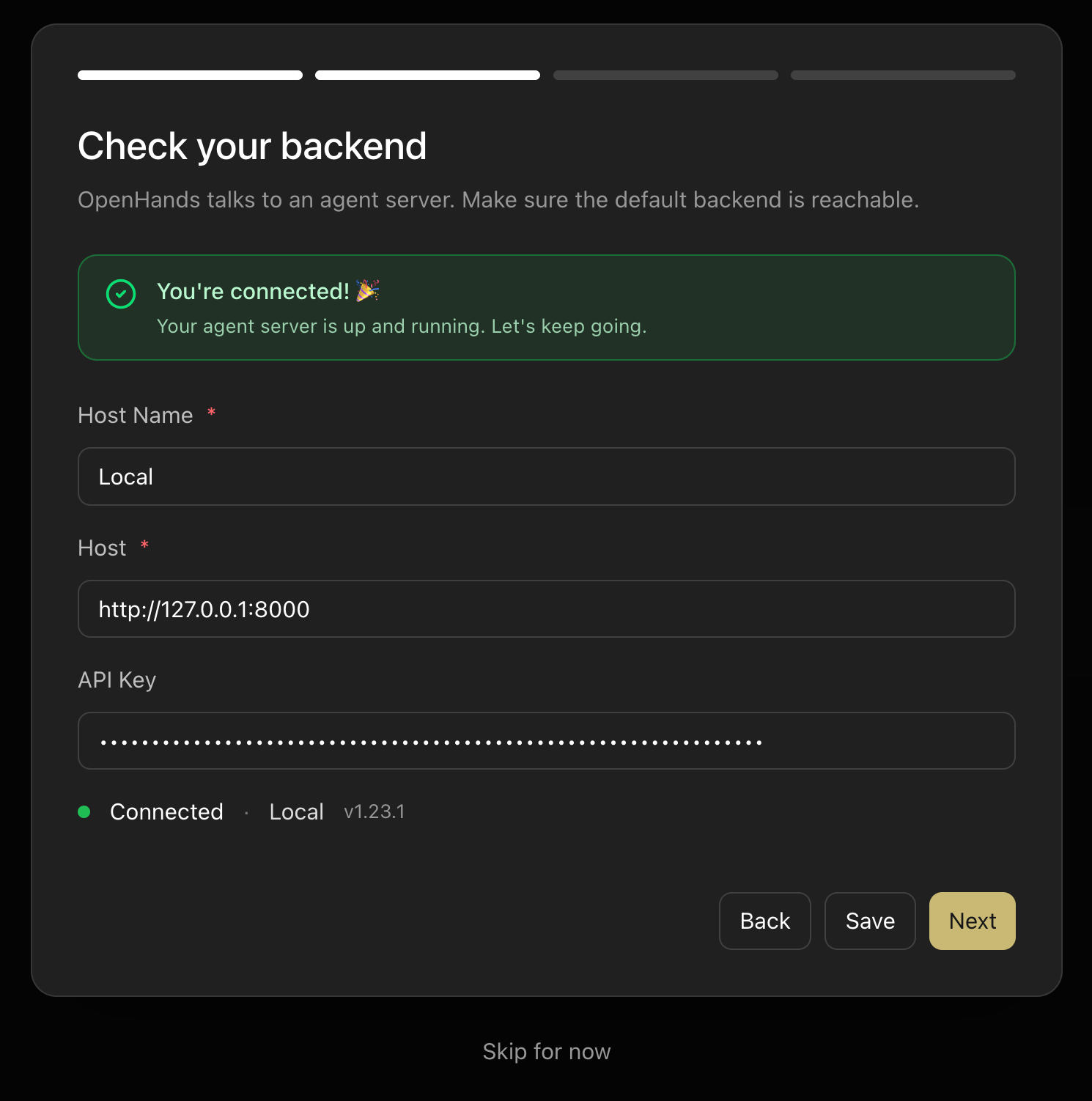 Agent Canvas routes all conversations through an **agent server backend**. By default, it connects to your local machine (`http://127.0.0.1:8000`), which is ideal for working on local projects.
The setup screen shows your current backend connection status. If the server is running, you'll see a **"You're connected!"** confirmation.
Each backend entry stores:
* A display name (e.g. `Local`)
* A host URL
* An optional API key
To add remote or cloud backends, or to manage multiple backend connections, see [Connect and Manage Backends](/openhands/usage/agent-canvas/backends).
## Step 3: Set Up Your LLM
Agent Canvas routes all conversations through an **agent server backend**. By default, it connects to your local machine (`http://127.0.0.1:8000`), which is ideal for working on local projects.
The setup screen shows your current backend connection status. If the server is running, you'll see a **"You're connected!"** confirmation.
Each backend entry stores:
* A display name (e.g. `Local`)
* A host URL
* An optional API key
To add remote or cloud backends, or to manage multiple backend connections, see [Connect and Manage Backends](/openhands/usage/agent-canvas/backends).
## Step 3: Set Up Your LLM
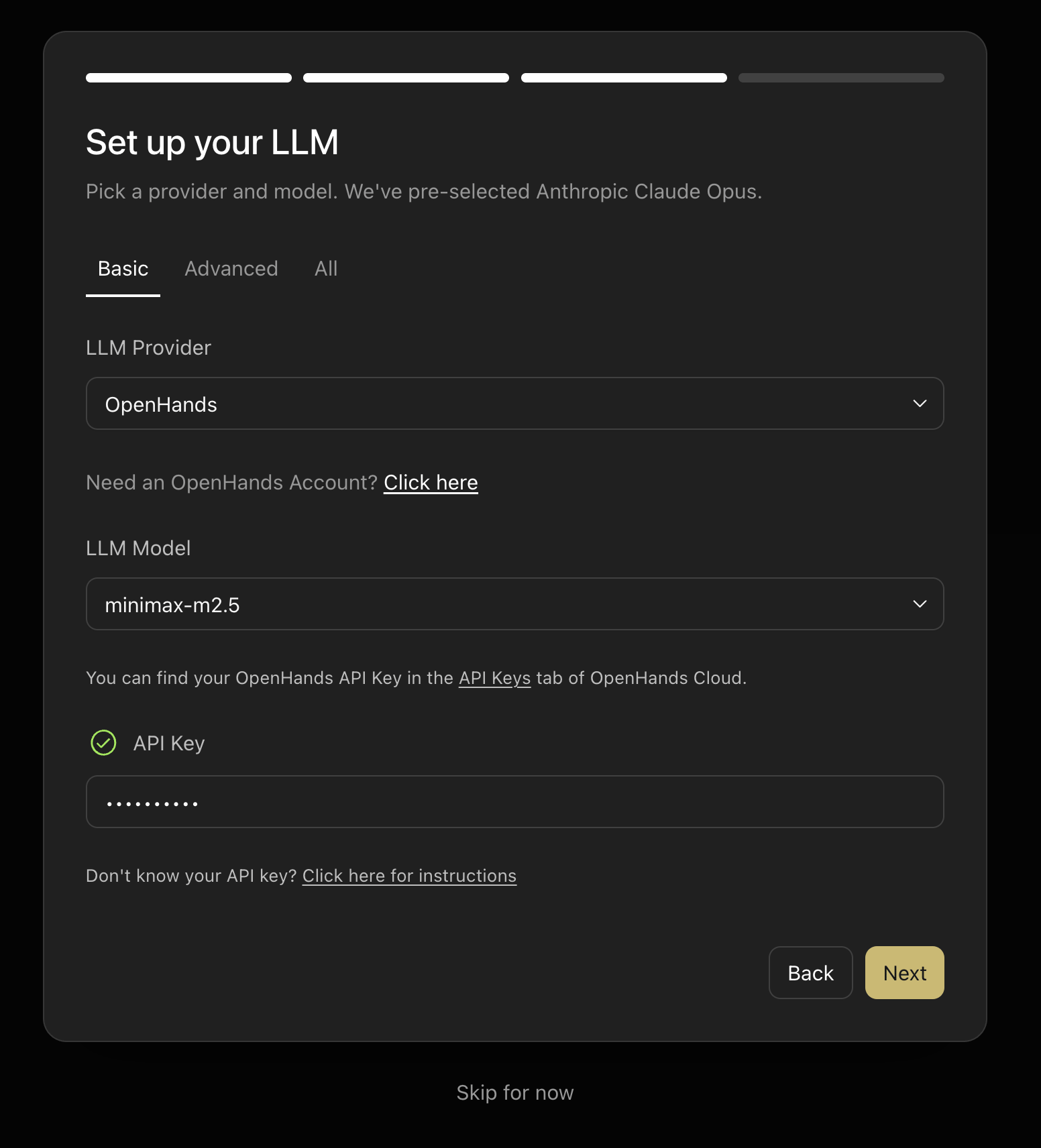 Agent Canvas supports **bring-your-own LLM key**. Select your LLM provider and model, then paste in your API key.
Available options:
* **Direct provider keys** — use your own API key from Anthropic, OpenAI, Google, or any other supported provider.
* **OpenHands Cloud** — use an [OpenHands Cloud](https://app.all-hands.dev) API key to access verified models without managing provider accounts directly. Find your API key in the `API Keys` tab of OpenHands Cloud.
The setup screen defaults to `OpenHands` as the provider and pre-selects a recommended model. Switch the `LLM Provider` dropdown to choose a different provider.
## Step 4: Start From a Proven Workflow
Agent Canvas supports **bring-your-own LLM key**. Select your LLM provider and model, then paste in your API key.
Available options:
* **Direct provider keys** — use your own API key from Anthropic, OpenAI, Google, or any other supported provider.
* **OpenHands Cloud** — use an [OpenHands Cloud](https://app.all-hands.dev) API key to access verified models without managing provider accounts directly. Find your API key in the `API Keys` tab of OpenHands Cloud.
The setup screen defaults to `OpenHands` as the provider and pre-selects a recommended model. Switch the `LLM Provider` dropdown to choose a different provider.
## Step 4: Start From a Proven Workflow
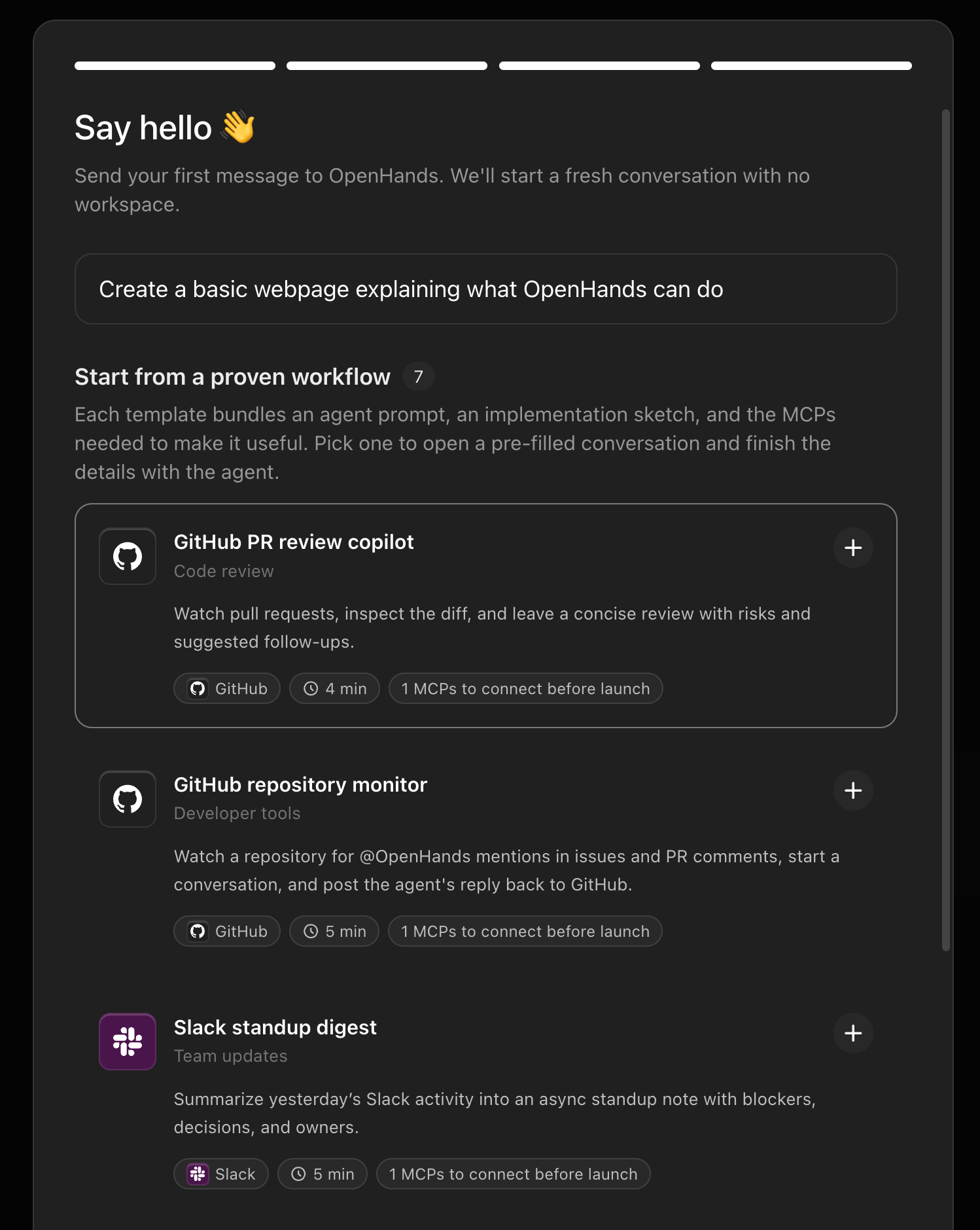 Agent Canvas is designed as an **automation-centric developer control center**. The final setup step invites you to kick things off with a pre-built workflow template rather than starting from a blank conversation.
Each template bundles an agent prompt, an implementation sketch, and the MCP connections needed to run it. Pick one to open a pre-filled conversation and finish the details with the agent.
A recommended starting point is the **[GitHub PR Review Copilot](/openhands/usage/agent-canvas/prebuilt/github-pr-review)**. This automation uses your GitHub MCP connection to poll for new pull requests and run agent review conversations locally — no cloud infrastructure required.
Other available templates include:
* **GitHub Repository Monitor** — watch a repository for `@OpenHands` mentions and respond automatically.
* **Slack Standup Digest** — summarize yesterday's Slack activity into an async standup note.
You can browse all pre-built automations from the `Automate` view at any time. See [Pre-built Automations](/openhands/usage/agent-canvas/prebuilt-automations) for the full list.
Agent Canvas is designed as an **automation-centric developer control center**. The final setup step invites you to kick things off with a pre-built workflow template rather than starting from a blank conversation.
Each template bundles an agent prompt, an implementation sketch, and the MCP connections needed to run it. Pick one to open a pre-filled conversation and finish the details with the agent.
A recommended starting point is the **[GitHub PR Review Copilot](/openhands/usage/agent-canvas/prebuilt/github-pr-review)**. This automation uses your GitHub MCP connection to poll for new pull requests and run agent review conversations locally — no cloud infrastructure required.
Other available templates include:
* **GitHub Repository Monitor** — watch a repository for `@OpenHands` mentions and respond automatically.
* **Slack Standup Digest** — summarize yesterday's Slack activity into an async standup note.
You can browse all pre-built automations from the `Automate` view at any time. See [Pre-built Automations](/openhands/usage/agent-canvas/prebuilt-automations) for the full list.